
Clouds SVG Files — Free Download for Cricut & Silhouette
Explore our professionally curated collection of Clouds SVG files — designed with precision and ready for instant download. Whether you're a seasoned crafter or just getting started, these 4 designs are optimized for clean, flawless cuts on Cricut, Silhouette, and all major cutting machines. Each file has been carefully tested to ensure compatibility with the most popular design software.
What sets our Clouds SVG files apart is attention to detail. Every design is built with scalable vector graphics that maintain sharpness at any size — from small sticker decals to large wall decorations. Files include properly structured layers, making it simple to customize colors and arrange elements in your design software.
When you download a Clouds design, you receive 2 ready-to-use SVG files — the primary design and an alternate variation. Files are immediately available after download with no software requirements — just upload directly to your cutting machine's companion app and start cutting.
✨ 4 designs available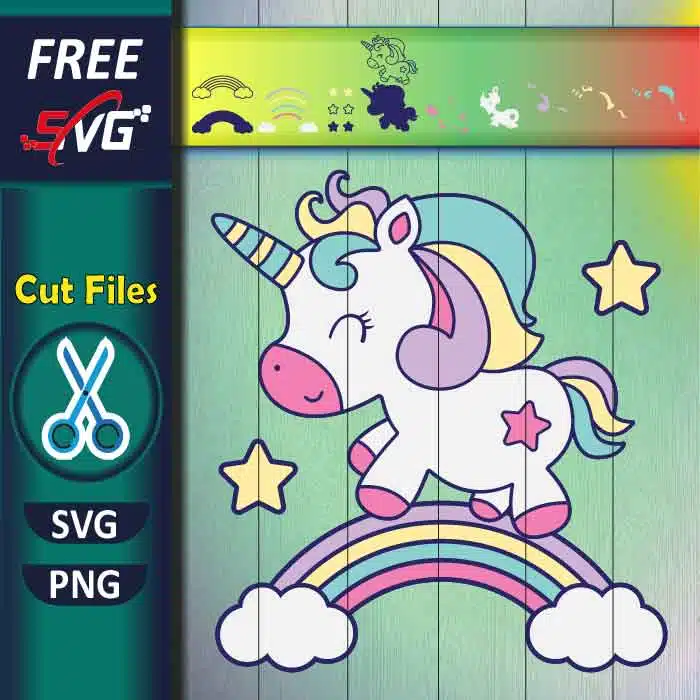


🧵 Materials & Compatibility Guide
Our Clouds SVG files are engineered to work flawlessly with a wide range of crafting materials. Use them with heat transfer vinyl (HTV) for apparel projects, adhesive vinyl — both permanent and removable — for decals and stickers, cardstock for paper crafts and scrapbooking, sublimation paper for full-color transfers, and even wood, acrylic, and faux leather with laser cutters. Each design maintains clean cut lines regardless of your chosen material.
📋 Quick Start Guide — How to Use Clouds SVG Files
Ready to create with your Clouds SVG design? Here's how in 5 simple steps. Step 1: Click the download button on any design to save the SVG file to your computer. Step 2: Launch Cricut Design Space, Silhouette Studio, or your preferred vector editor. Step 3: Upload the SVG — all design elements import with correct positioning and layers. Step 4: Adjust size, colors, or arrangement as needed for your specific project. Step 5: Select your material settings, load your mat, and press Cut — perfect results guaranteed!
🎨 Project Ideas with Clouds SVG Designs
- Personalize water bottles and sports gear with durable outdoor vinyl — your Clouds design will withstand daily washing and outdoor conditions.
- Design custom tote bags and canvas prints using screen printing or HTV techniques — perfect for personalized gifts, matching family outfits, or everyday accessories.
- Create nursery wall decorations — cut Clouds designs from removable vinyl for temporary decor that won't damage walls when it's time for a change.
- Make stunning glass etching projects — use your Clouds SVG as a stencil pattern for etching cream on mirrors, glassware, and picture frames.
💡 Pro Tips for Working with Clouds SVG Files
- Mirror your design before cutting heat transfer vinyl — this ensures the image appears correctly when pressed onto fabric.
- Use a weeding tool with a fine tip to easily remove excess vinyl from intricate Clouds designs — bright-colored weeding lines help you see what to remove.
- Test cut first on a small scrap piece of your chosen material to dial in the perfect pressure and speed settings before committing to your full design.
❓ Frequently Asked Questions about Clouds SVG Files
Are these Clouds SVG files compatible with Cricut machines?
Absolutely! Every Clouds SVG file in our library is fully tested and compatible with all Cricut machines, including the Cricut Maker, Cricut Maker 3, Cricut Explore Air 2, Cricut Explore 3, and Cricut Joy. To use them, simply open Cricut Design Space on your computer or mobile device, click "Upload," select the downloaded SVG file, and insert it into your canvas. The design will import with all layers and colors intact.
Can I use Clouds SVGs with Silhouette Studio?
Yes, our Clouds SVG files work perfectly with all Silhouette cutting machines, including the Silhouette Cameo 4, Cameo 5, Portrait 3, and Curio 2. To import SVG files directly, you'll need Silhouette Studio Designer Edition or higher. Once imported, you can resize, recolor, and arrange the design elements before sending them to your machine for cutting. The cut lines are pre-optimized for clean results.
Are Clouds SVG files free to download on SVG4K?
Yes! SVG4K provides free access to our Clouds SVG files. Every visitor can download one design per day completely free of charge — no account required. For crafters who need more, our subscription plans offer unlimited downloads starting at just $5 per month. Subscribers also get access to our full library of thousands of SVG designs across all categories, plus early access to newly added designs.
What cutting machines are compatible with Clouds SVG files?
Our Clouds SVG files are compatible with virtually every cutting machine on the market. This includes all Cricut models — Maker, Maker 3, Explore Air 2, Explore 3, Joy, and Venture — as well as all Silhouette machines including the Cameo 4, Cameo 5, Portrait 3, and Curio 2. They also work with Brother ScanNCut DX and SDX series, and any other cutter or laser engraver that accepts SVG file imports.
What are the most popular personal projects using Clouds SVG files?
Our crafting community loves using Clouds SVG files for a wide variety of personal projects. The most popular include custom t-shirts and hoodies with heat transfer vinyl, personalized mugs and tumblers for daily use or gifting, handmade greeting cards and party decorations, nursery wall art and home decor, matching family outfits for holidays and photo shoots, custom tote bags and accessories, scrapbook embellishments, and DIY gifts for birthdays, weddings, and baby showers.
Want unlimited access to all Clouds designs and thousands more? Subscribe to SVG4K starting at just $5/month — download as many SVGs as you need, anytime.
Get Unlimited Downloads →